Linux, dressed as macOS
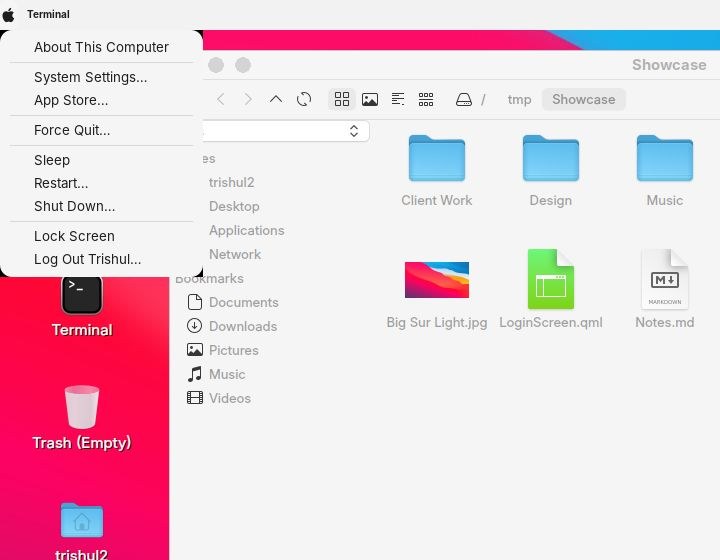
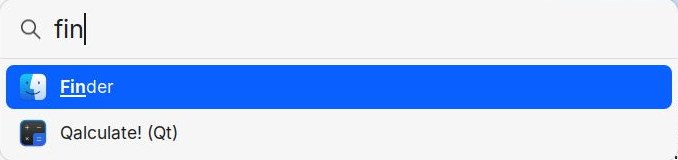
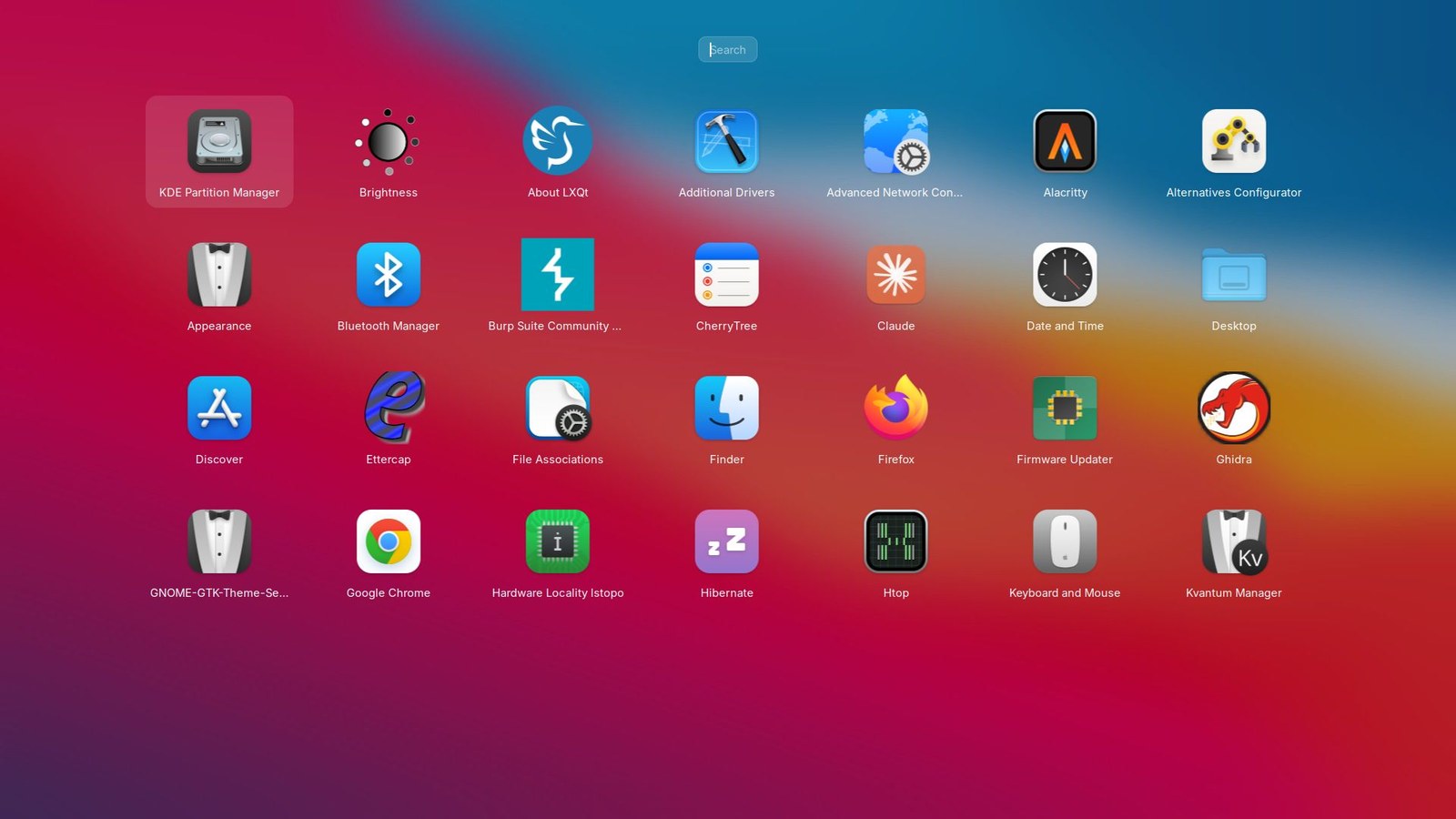
A free Lubuntu laptop that looks and feels a lot like my MacBook: menu bar with Wi-Fi, Bluetooth, Sound, Battery and notification menus, Notification Center, Dock, Launchpad, Spotlight, Finder, traffic-light buttons, and a macOS-style login and lock screen.
Every change, explained →: what was changed, where, and why. Website: rajiv2312.github.io/lubuntu-macos. This project continues linux-macos-look (the first version, 28 September 2026).
I didn’t edit a single config file myself. I described what I wanted to an AI coding agent (Claude Code), one request at a time, and it did the work, starting with a full backup and a one-command undo.
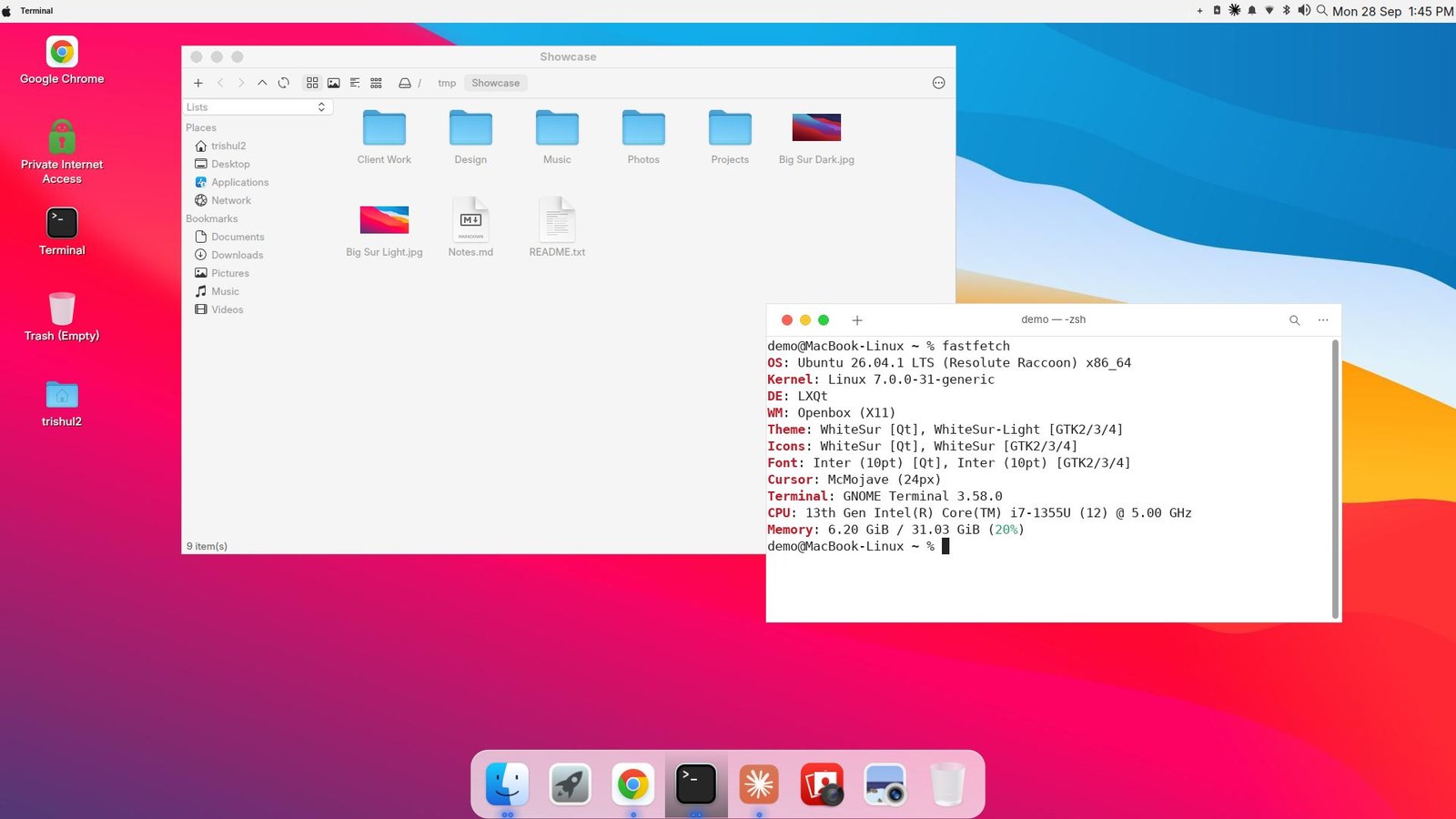
| Menu bar | Spotlight |
|---|---|
 |
 |
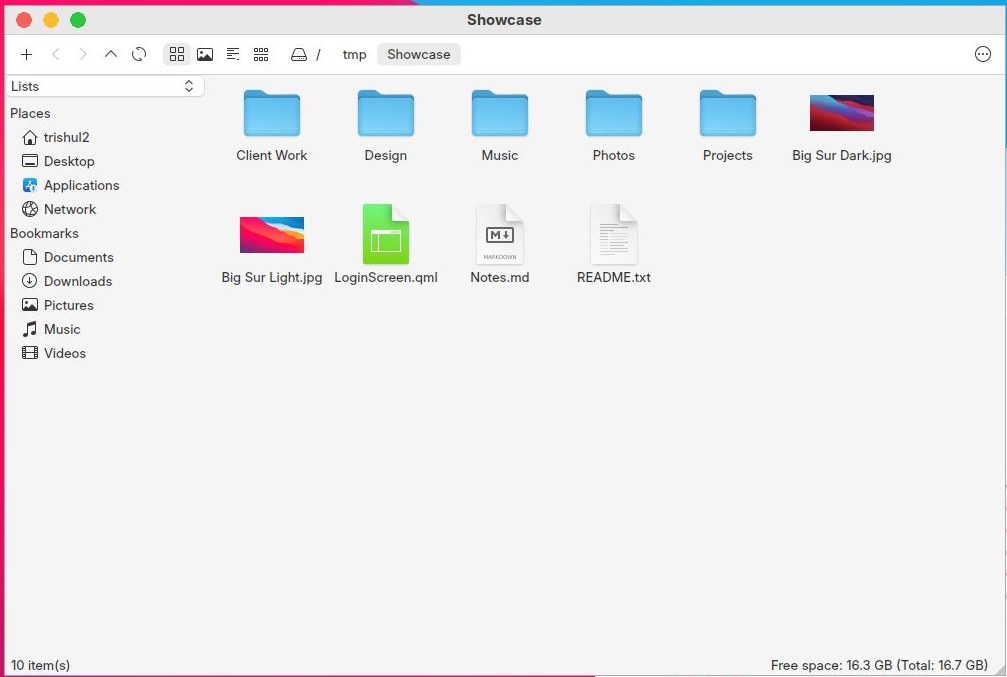
| Launchpad | Finder |
 |
 |
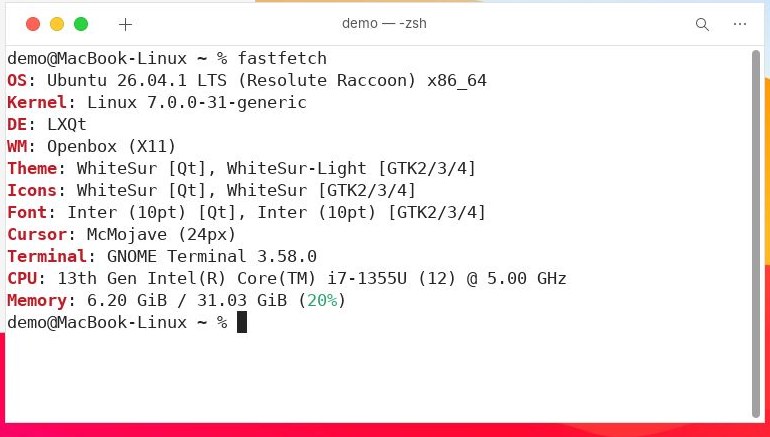
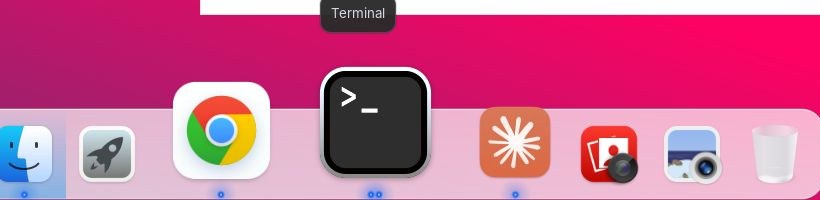
| Terminal | Dock |
 |
 |
Menu-bar menus and Notification Center
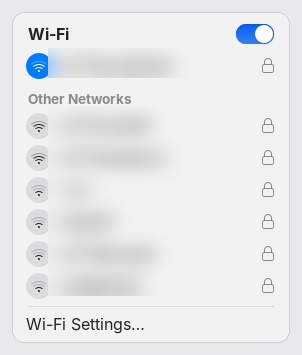
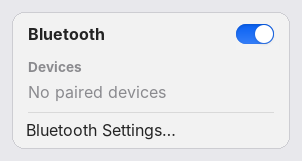
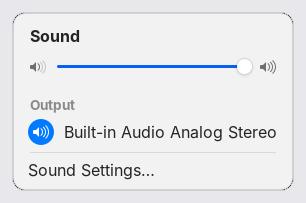
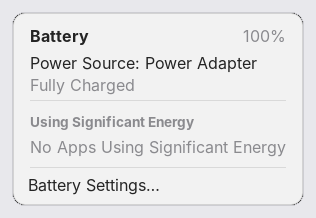
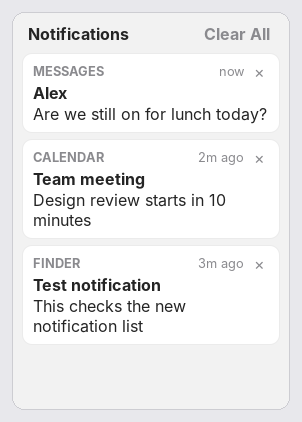
Click an icon in the menu bar and a small panel drops down instead of an app opening, like on a Mac. Clicking the clock opens a Notification Center with Calendar and World Clock widgets.
| Wi-Fi | Bluetooth | Sound |
|---|---|---|
 |
 |
 |
| Battery | Notifications | Notification Center |
 |
 |
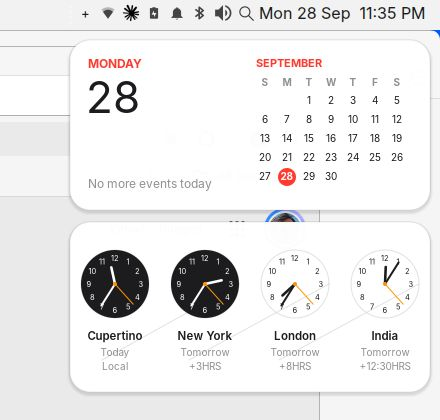 |
(Wi-Fi network names are blurred.)
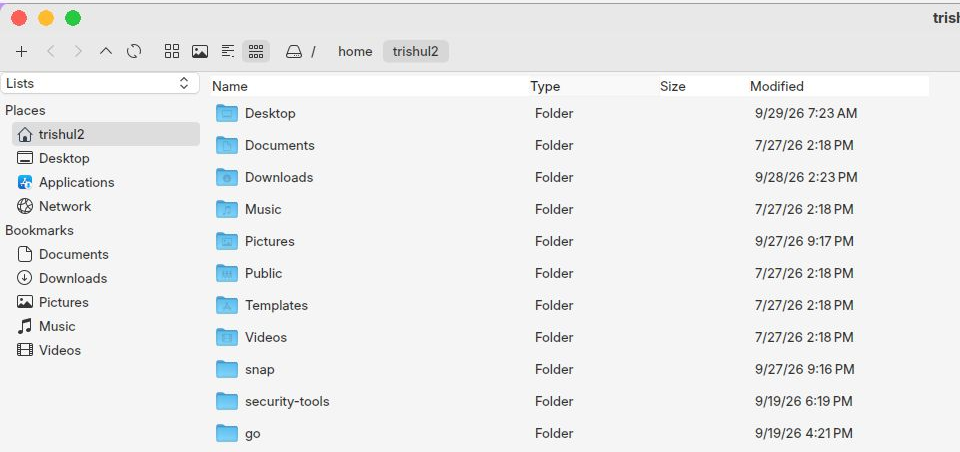
Finder list view and the lock screen
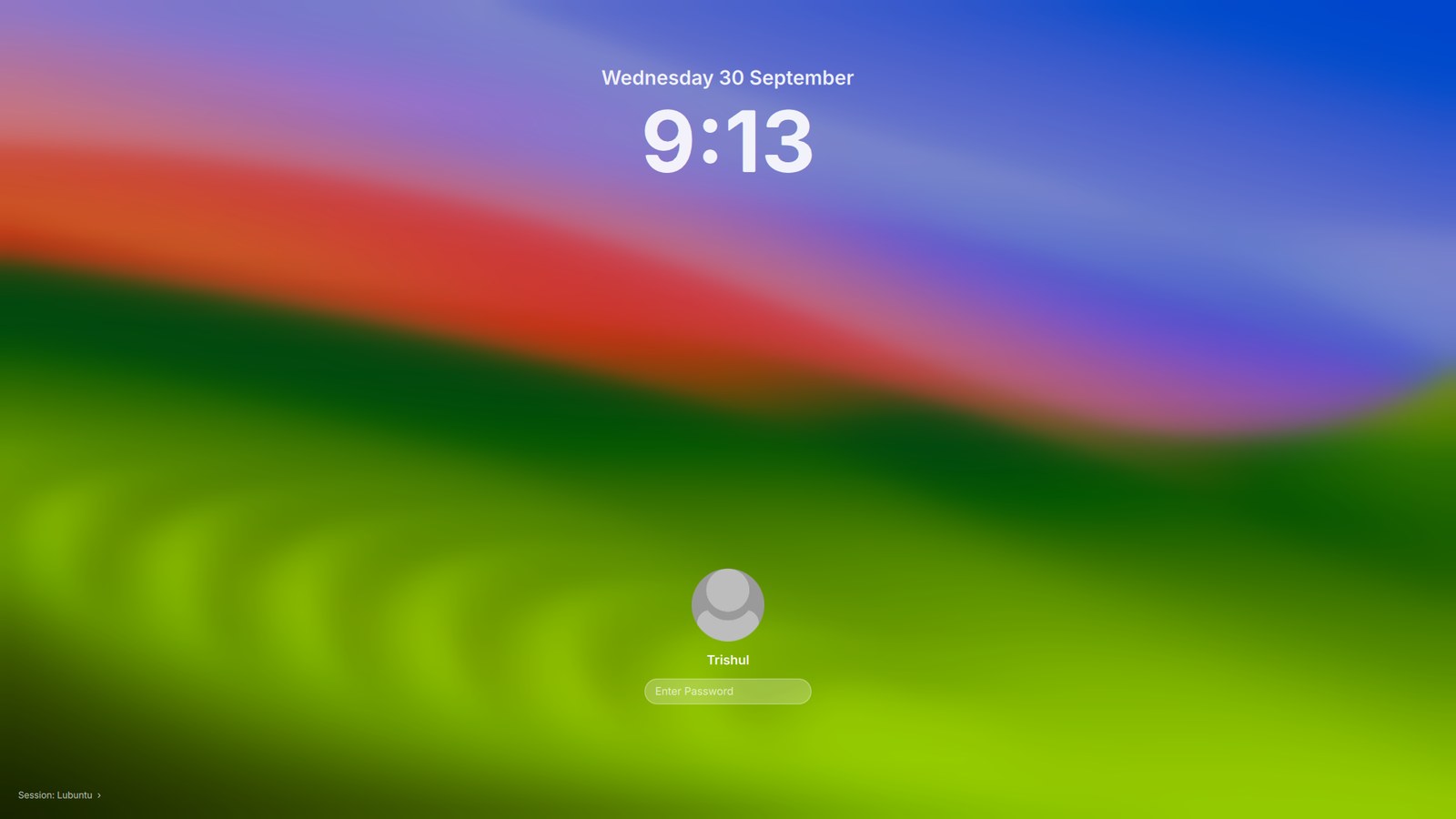
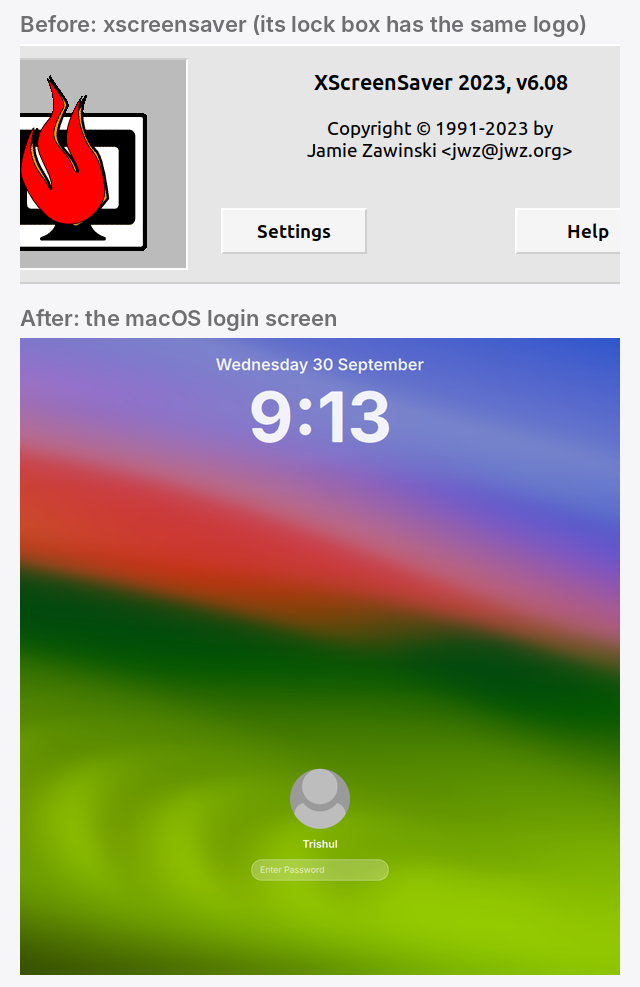
The login screen is also the lock screen (closing the lid, Ctrl+Alt+L, Apple menu → Lock Screen):
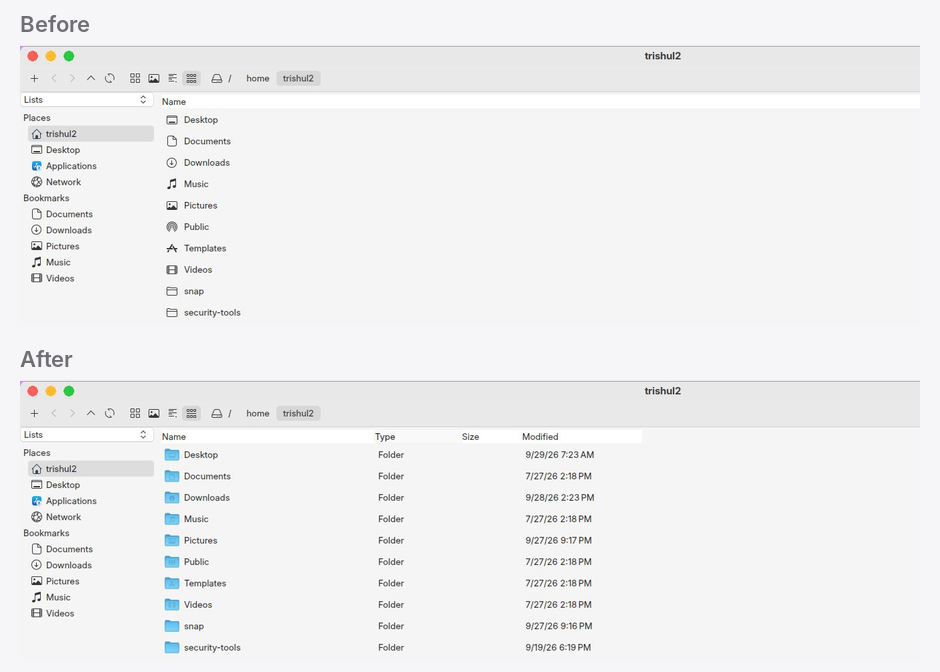
Before and after
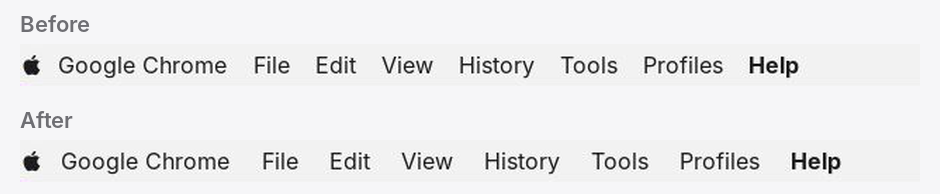
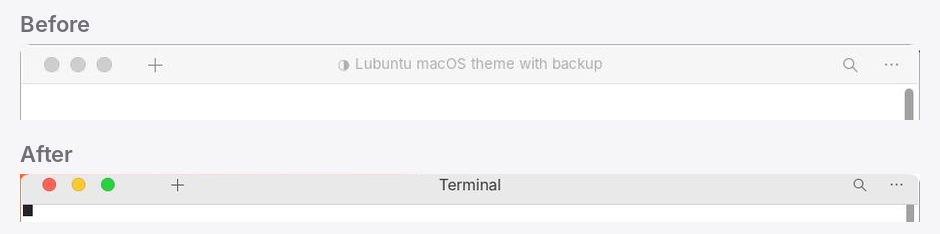
Clean “before” shots of stock Lubuntu weren’t captured before the first change, so these compare individual features just before and after they were changed:
| Finder | Lock screen |
|---|---|
 |
 |
| Menu titles (macOS spacing) | Terminal title bar (same height as other windows) |
 |
 |
To see stock Lubuntu for comparison, install Lubuntu 26.04 in a virtual machine and take a screenshot before running the installer.
Try it
Back up and try it in a virtual machine first. This was built on one machine and has not been tested anywhere else. Both installers back up everything they change and print a
restore.shthat undoes it.
Lubuntu 26.04 (the full version, as in the screenshots)
git clone https://github.com/rajiv2312/lubuntu-macos.git
cd lubuntu-macos/lubuntu
./install.sh
Log out and back in when it’s done.
| macOS | Here |
|---|---|
| Launchpad | F4, or the rocket in the Dock |
| Spotlight | Super + Space, or the magnifier in the menu bar |
| Apple menu | the Apple logo (Sleep, Restart, Shut Down, Log Out, …) |
| Finder | the file manager (PCManFM-Qt) |
| Notification Center | click the clock |
| Lock Screen | Ctrl+Alt+L, Apple menu, or close the lid |
Undo: ~/macos-look-backup/<date>/restore.sh, then log out and back in.
Single features can be removed with ~/.local/share/macos-theme/undo-status-menus, undo-macos-lock and undo-animations.
Ubuntu 26.04 with GNOME (experimental)
cd lubuntu-macos/gnome
./install.sh
GNOME works differently from LXQt, so this version gets the same look using GNOME’s own parts:
WhiteSur GTK + Shell theme, Ubuntu Dock moved to the bottom, traffic lights on the left, Big Sur wallpaper.
Launchpad is GNOME’s app grid and Spotlight is GNOME search (press Super).
Untested so far. Please open an issue if something breaks.
What the Lubuntu installer changes
A short summary; docs/CHANGES.md lists every file and setting.
- Themes: WhiteSur GTK (light + dark), WhiteSur icons (+ colour folders in Finder’s list view), WhiteSur Kvantum for Qt apps (made opaque, bigger tabs, Finder-style column dividers), McMojave cursors with macOS resize arrows, Inter font at 12 pt everywhere. Downloaded from GitHub at pinned versions.
- Menu bar: LXQt panel + vala-panel global menu with an Apple menu, macOS-sized titles and spacing; light bar, monochrome icons, no hover tooltips, Spotlight icon.
- Menu-bar menus: Wi-Fi, Bluetooth, Sound, Battery and a notification list open macOS-style drop-down panels.
- Notification Center: click the clock for Calendar and World Clock widgets.
- Dock: Plank with magnification, running dots and Trash; Finder, Launchpad, Terminal, Preview (and Chrome, Claude, Photo Booth if installed) pinned.
- Launchpad & Spotlight: rofi, themed as a full-screen app grid and a centred search bar.
- Windows: Openbox themes with red/yellow/green buttons on the left, 32 px title bars, rounded corners, animations, invisible resize margins, inactive-window look, drag a maximised window out by its title bar.
- Finder: list view by default (Name, Type, Size, Modified; resizable columns), Favorites-style sidebar, macOS wording in dialogs.
- Apps renamed like macOS: Finder, Terminal (GNOME Terminal), Preview, TextEdit, Photo Booth.
- Login and lock screen: a small SDDM theme with blurred wallpaper, big clock, round avatar and pill password field; locking shows the same screen (safely, see CHANGES.md).
- Wallpapers & screensaver: WhiteSur’s Big Sur, Monterey, Ventura and Sonoma wallpapers; Ken Burns slideshow screensaver, Flurry as the alternative.
- Extras: light notification cards (top right), macOS-style password prompt.
Everything under lubuntu/files/ is copied into your home folder (@HOME@ / @REALNAME@ are filled in for you).
The author’s own preferences (Finder sort order, dock pins, world clocks, wallpaper) are included and marked in CHANGES.md.
Credits
- WhiteSur GTK, WhiteSur icons, WhiteSur KDE/Kvantum + wallpapers and McMojave cursors and WhiteSur wallpapers by vinceliuice. They are downloaded by the installer, not included here.
- Plank, rofi, vala-panel-appmenu, Inter, Papirus, LXQt, Openbox, picom.
- Built with Claude Code.
Not affiliated with or endorsed by Apple. macOS, Finder, Launchpad and Spotlight are trademarks of Apple Inc., used here only to describe the look.
License
The scripts and configs in this repository are MIT licensed (see LICENSE), except:
lubuntu/files/home/.local/share/lxqt/themes/kvantum-macos/is a modified copy of LXQt’s kvantum panel theme (LGPL-2.1+).lubuntu/files/home/.local/share/plank/themes/WhiteSur-Dark/dock.themeis based on WhiteSur’s Plank theme (MIT).
Downloaded third-party themes keep their own licenses.